How to make a thumbnail from a frame of your own video.
The best thumbnail for most videos is already inside the video. Real face, real moment, real light. The job is to find that frame, separate the subject from whatever is behind it, and put a few words on it that survive being shrunk to the size of a stick of gum. This is how a working editor does it by hand, and how to skip the hand part.
1. Find the frame
Scrub the whole video at about one frame a second and look for four things:
- Eyes open, face toward the lens. Mid-blink and profile shots lose.
- One expression, strong. Surprise, effort, a laugh, a stare. Neutral faces do not get tapped.
- Sharp. Motion blur that looks fine at 24 frames a second looks broken as a still. Pause and zoom to check.
- Room around the subject. You need space on one side for the words. A subject dead center with the frame edge cutting the head is hard to work with.
Grab six to ten candidates. Export each as a still from the timeline (or take a screenshot of the paused player at full resolution). Vertical footage is fine; a vertical frame gives a great 9:16 thumbnail and a usable 16:9 one when the subject is cut out and placed.
2. Cut the subject out
A subject floating on a clean ground reads at any size. A subject buried in the original background does not. Remove the background (any current background remover handles a person against a normal scene), then check the edges: hair, fingers, anything thin. Add a thick white or black outline around the cutout. It looks loud at full size and perfect at feed size.
Crop the cutout so it bleeds off the bottom edge. Floating heads with a visible neckline cut look like stickers; a subject that runs off the bottom looks like a photo.
3. Build the ground
Three choices, and they make three different thumbnails from the same frame:
- Solid color. Pick a color from the footage itself, then push it. If the subject wears red, try a teal or yellow ground, not more red.
- The footage, darkened and blurred. Keeps the mood of the video. Darken it by half so the words and the cutout pop.
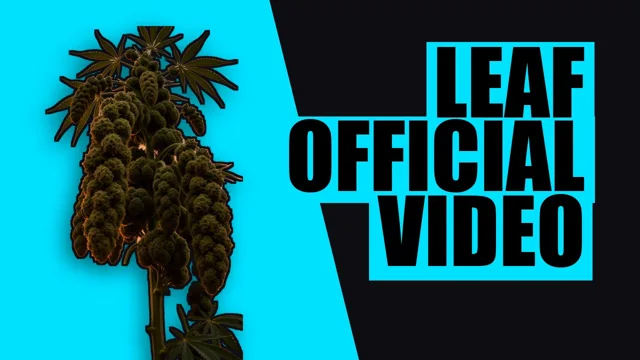
- A graphic. A diagonal split, a gradient between two colors from the frame, rays, a spotlight. Loud, and it works when the footage is dull.
4. Three to five words, huge
Words are for the feed, where the title is a line of grey text nobody reads. Use a heavy font (Impact and Arial Black are heavy for a reason), all caps, white with a black stroke or black with a white stroke, stacked two or three lines on the empty side of the frame. If the words need more than a third of the frame to fit, cut a word.
Then shrink the whole thing to 200 by 113 pixels and look at it on your phone. If you cannot read the words and see the face at that size, it is not done.
 →
→
Skipping steps 1 to 4
Thumbnl does exactly this, from the video file. It reads the frames in your browser, picks a sharp frame with a clear subject and a face (or you tap one), cuts the subject out, colors a ground from the footage, sets your words at the largest size that fits, and scores the result at feed size. You get three different looks, in 16:9 and 9:16, in about ten seconds, and buttons to flip, recolor, change the font or resize the words on any of them.